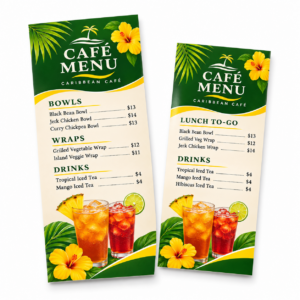
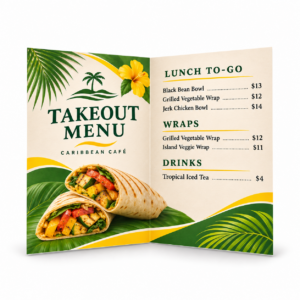
What to check when preparing AI artwork for print and professional production.
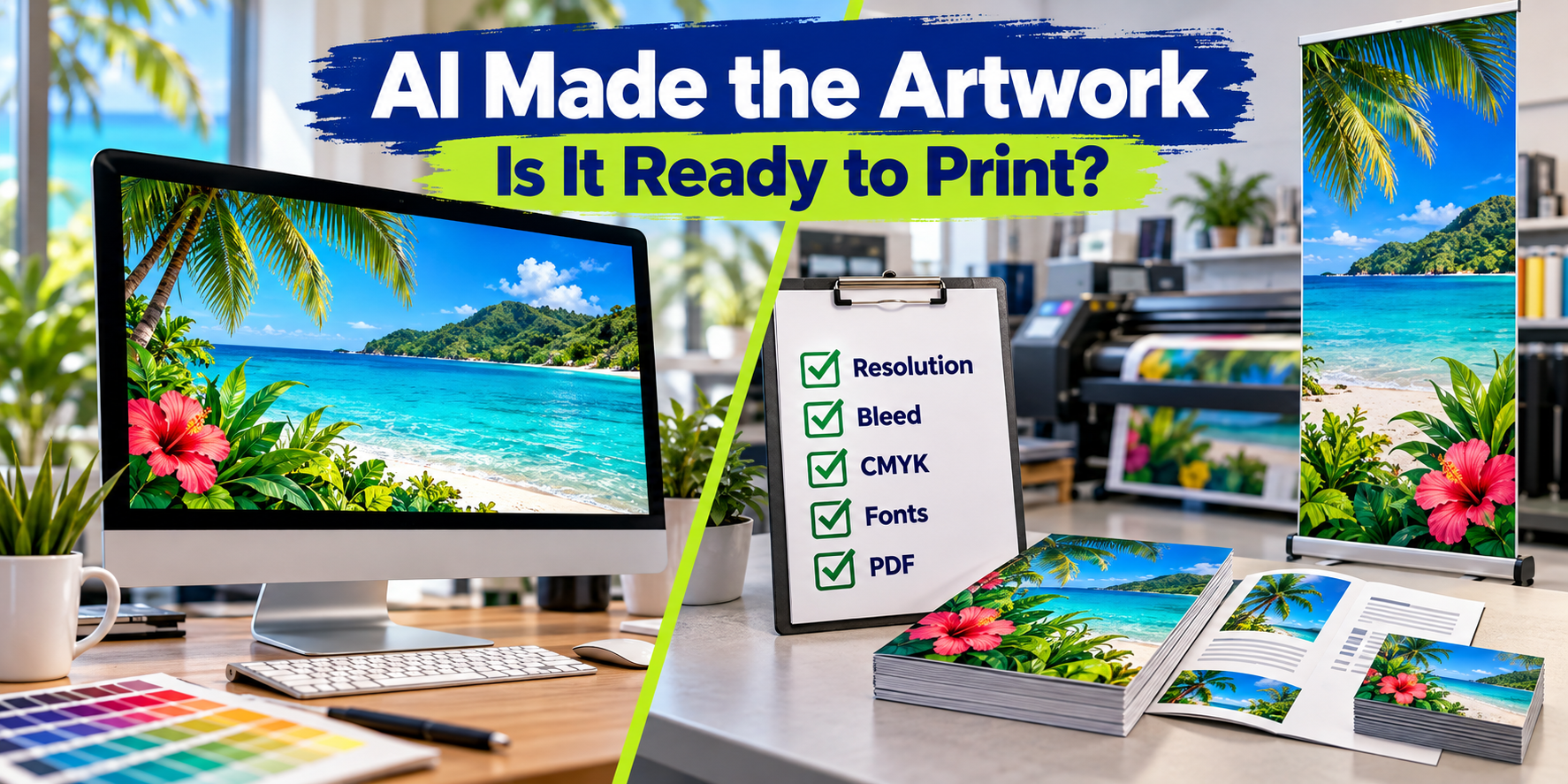
Artificial intelligence has opened the door for almost anyone to create logos, illustrations, backgrounds, advertisements and promotional graphics. A business owner can describe an idea and receive an impressive image in seconds.
That is a wonderful starting point—but it does not necessarily produce a print-ready artwork file.
AI image tools primarily create pictures for viewing on a screen. Professional printing requires additional information about the finished size, resolution, color, bleed, fonts and file format. Before using AI-generated artwork for a business card, banner, sign, T-shirt, brochure or promotional item, here are the most important things to check.
1. Create the artwork for its actual purpose
Before generating anything, decide where the design will be used.
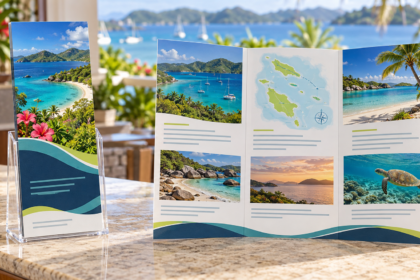
A square social-media graphic, a horizontal banner and a vertical rack card require completely different proportions. Simply stretching or cropping an image afterward can distort important elements or remove part of the design.
Your AI prompt should describe the intended shape and leave suitable space for your logo, headline, contact information or other content. However, even when an AI tool offers aspect-ratio choices, the resulting image may not match the exact dimensions required for printing.
For that reason, begin with the specifications for the product you plan to order. A 3.5-by-2-inch business card, for example, should be laid out differently from a 3-by-8-foot banner.
2. Check the resolution at the finished size
An image can look sharp on a phone or computer monitor but appear blurry or pixelated when enlarged.
For many smaller printed products, such as business cards, postcards, flyers and brochures, 300 pixels per inch at the final printed size is a common target. Large-format graphics may be produced successfully at a lower resolution because signs and banners are normally viewed from farther away.
The important phrase is “at the final size.” A small AI image may technically have a high pixel count, but enlarging it for a banner reduces its effective resolution.
AI upscaling can sometimes help, but it cannot reliably restore fine details that were never present in the original image. It can also introduce strange textures, artificial edges or changes to faces and lettering. Always inspect an enlarged image carefully.
3. Allow for bleed and safe margins
If a photograph, color or design element is intended to extend all the way to the edge of a printed piece, the artwork normally needs bleed.
Bleed means extending the background beyond the final trim line so that a tiny variation during cutting does not leave an unwanted white edge. For many smaller commercial-printing products, 1/8 inch of bleed on every side is common, although requirements vary by product and printer.
Important text, logos, borders and phone numbers should also remain safely inside the trim line. Borders positioned too close to an edge can look uneven after normal cutting tolerances are considered.
Adobe’s print-preparation guidance similarly treats document dimensions, margins, bleed, color, fonts and preflight inspection as separate production considerations—not details that should be left to chance.
4. Understand RGB and CMYK color
Screens display color using RGB—red, green and blue light. Most full-color commercial printing uses CMYK—cyan, magenta, yellow and black ink or toner.
Some vivid RGB colors, particularly bright blues, greens and fluorescent-looking shades, cannot be reproduced exactly with standard CMYK printing. Consequently, an AI-generated image may look more intense on your illuminated screen than it will on paper, vinyl, fabric or another physical material.
Converting an image to CMYK does not automatically guarantee accurate color. The printing method, substrate, coating, color profile and equipment can all affect the result. If a precise corporate color is important, tell your printer before production and consider requesting a proof.
5. Add important words and logos separately
AI image generators are improving, but they can still produce misspelled words, malformed letters, inaccurate logos and text that only resembles writing.
It is usually better to use AI for the illustration, background or creative concept and then add your real logo and wording in a proper page-layout or graphic-design program.
Before submitting the finished file, confirm that fonts are embedded in the PDF, converted appropriately to outlines or supplied with the editable artwork when licensing permits. This helps prevent an unavailable font from being substituted and changing the appearance or spacing of your design.
6. Submit the right file format
A JPEG or PNG may be suitable for a photograph, but it is not always the best final format for a complete printed layout.
A properly prepared PDF is generally preferred for many commercial-printing projects because it can preserve the page dimensions, fonts, vector elements, images, color information and bleed settings in one file. PDF/X formats were specifically developed for reliable graphic exchange in print-production workflows.
For logos, signs, apparel decoration and certain promotional products, vector artwork may be required. Vector graphics can be enlarged without becoming pixelated and are usually supplied as PDF, EPS or AI files. Turning a low-resolution JPEG into a PDF does not convert it into true vector artwork.
7. Make sure you have the right to use the image
Do not assume that every AI-generated image is automatically safe for unrestricted commercial use. Review the terms of the particular AI service, and avoid prompts requesting a recognizable copyrighted character, protected logo, celebrity likeness or direct imitation of a living artist’s work.
Copyright protection for AI-assisted work can also depend on the amount of meaningful human authorship involved. The U.S. Copyright Office distinguishes between material whose expressive elements are determined by AI and human-created contributions such as original selection, arrangement, editing or modification.
Keep records of the tool used, your prompts, source materials, licenses and the changes you made—particularly when the artwork will represent your business.
The final step: let your printer inspect it
A file can open successfully and still contain production problems. Before printing, an experienced printer can check the dimensions, resolution, bleed, margins, color setup, fonts, transparency, cut lines and suitability for the selected product.
At Caribbean Printing & Marketing, we are happy to review your artwork and explain what may need attention. If your AI-generated idea is not quite production-ready, we can help turn it into a file that is.
AI is an excellent creative assistant. Pairing it with knowledgeable prepress guidance helps ensure that the finished product looks as good in your hands as the original idea looked on your screen.
Have an AI-created design you would like to print? Send the artwork and your intended product specifications to Caribbean Printing & Marketing, and we will help you determine the best way forward.
Sources
Adobe: Producing print-ready PDF files in InDesign
U.S. Copyright Office: Copyrightability of works containing generative-AI material